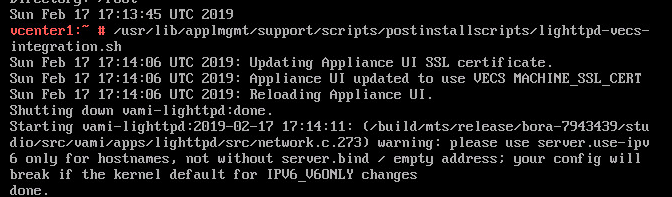
This is related to a new SSL thumbprint.
You have tried to “Save and Restart Service”.
You tried rebooting.
None of it works.
Power off the VM. Leave it off and power it back on. You can now “Save and Restart Service”

Systems Administration Problem Solvers
www.tediosity.com
This is related to a new SSL thumbprint.
You have tried to “Save and Restart Service”.
You tried rebooting.
None of it works.
Power off the VM. Leave it off and power it back on. You can now “Save and Restart Service”

You have an ancient Windows XP you need to access and keep online.
2. A working browser is crucial. Firefox ESR 52.9.0 32 bit works great and is available here: https://ftp.mozilla.org/pub/firefox/releases/52.9.0esr/win32/en-US/
3. Install TLS 1.1 and TLS 1.2 and update IE8 using the POS files. This website is all you need to accomplish this task:
https://emailarchitect.net/easendmail/sdk/html/object_tls12.htm
4. After you do all of the above update, upgrade RDP. RDP has had a lot of security holes over the years and you will want to update it urgently: https://support.microsoft.com/en-us/help/4500331/windows-update-kb4500331
You are browsing a VMware ESXi datastore and attempting to “Add to inventory”, but the VMX is grayed out.
There is a problem in your VMX file. The VMX files are automatically scanned on a directory listing and if there are problems in the file you won’t be given the option to add it to inventory.
This usually occurs when you copy and paste a code snippet from someone using a Mac (ugh).
Need VMware Hosting? Contract VMDK Hosting.
You have a need to enable RDP on an old machine running Windows 8 Home and discover that only Windows 8 PRO has RDP abilities.
The solution is to install RDPWrap created by these fine individuals:
https://github.com/stascorp/rdpwrap
“The goal of this project is to enable Remote Desktop Host support and concurrent RDP sessions on reduced functionality systems for home usage.”
If the new version does not work on your system, use 1.15.
Enable RDP on Windows 8.1 Home Edition
For a multitude of reasons your VR appliance is not connected to vCenter, such as:
Login to the VMware vSphere Replication appliance.
Identify the password of your keystore. To do this, type this command:
/opt/vmware/hms/bin/hms-configtool -cmd list | grep keystore
Note the keystore password.
Now execute this command:
java -jar va-util.jar -cmd certauth -host vCenter_Server_IP-address -port 80 -user vCenter_Server_USERNAME -pass vCenter_Server_PASSWORD -extkey com.vmware.vcHms -keystore /opt/vmware/hms/security/hms-keystore.jks -keystorealias jetty -keystorepass KEYSTOREPASSWORD
Your VM won’t boot. FSCK needed on an LVM. You don’t have root and are screwed.
Boot the rescue disk.
Scan all disks for partiitions:
Scan all disks for volume groups and build /etc/lvmtab and /etc/lvmtab.d/* which are the database for all other lvm commands:
Change attributes of a logical volume
Scan all disks for logical volumes
Then I was able to run fsck as follows
fsck -f /dev/VolGroup00/LogVol00
Your FreeNAS, or FreeBSD, ZFS zpool lost power and can’t be accessed.
Boot the machine and enter the boot loader menu and set these:
set vfs.zfs.debug=1
set vfs.zfs.recover=1
set debug.bootverbose=1
boot -s <enter> to start the machine in single user mode.
Once booted:
zpool import -fFX -o readonly=on -R /mnt tank (or whatever the name of your zpool is).
This should work in most all cases and allow you to rsync/scp/copy your data off of the zpool.
Don’t deviate from the above. I know you are super smart and believe you don’t need to set the flags, don’t need single user mode, or don’t need to mount in read only. You do. Don’t waste time and risk screwing up the pool permanently.
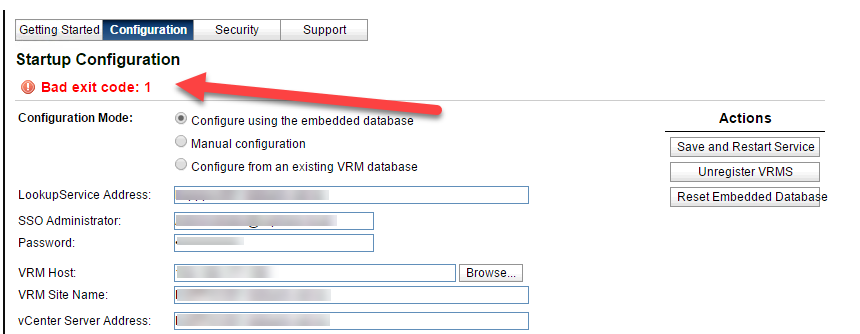
Note: The below is for vCenter 6.0. VMware has made it easier in 6.7. You just need to restart VAMI using:
/sbin/service vami-lighttp restart
You have updated the SSL certificate on your Platform Service Controller (PSC) and you probably went through a further nightmare of update the SSL certificates on a bunch of other services.
After all of the above was completed, you realized that none of this tediosity updated the VAMI SSL certificate on port 5480.
Login to the vCenter shell and run this command:
/usr/lib/applmgmt/support/scripts/postinstallscripts/lighttpd-vecs-integration.sh
It will update the SSL certificate used on the VAMI to the SSL certificate used on the PSC, vCenter webclient, etc:

You have emails stuck in clientmqueue that are stuck because of a prior sendmail issue.
To process all e-mails in the clientmqueue:
sendmail -Ac -q -v
Manually flush clientmqueue:
sendmail -Ac -q -v
You are attempting to manually assign a MAC to a vSphere VM in the 00:0c:29:xxx range.
You receive this error:
Module DevicePowerOn power on failed.
Could not set up “macAddress” for ethernet0.
Invalid MAC address specified.
00:0c:29:4c:6f:70 is not an allowed static Ethernet address. It conflicts with VMware reserved MACs.
Solution: Edit the .vmx file for the VM and add this line:
ethernet0.checkMACAddress = "false"